

Feel confused navigating your CBIC profile or just need a refresher? Below, I will be providing step-by-step details to help you navigate your CBIC profile.
Where do I go to access my CBIC profile?
Please go to the CBIC website (CBIC.org), hover your mouse over “My Certification”, select “My Profile”.

Enter your CBIC login credentials.

You are now in your CBIC profile!
This is the main page you will see every time you login to your account. Below is the detailed explanation of the “About Me” section of your account. If you see the “Type” listed as “Prospect” on your profile, this means that you are not yet certified by CBIC.


Now that we have covered the “About Me” portion of your profile, we will get into the “My IPUs” tab. This tab is viewable only if you have an active CIC® certification. You can only pay for and submit your portfolio in the final year of your expiration (i.e.: if your CIC® certification expires 12/31/25, you would not be able to pay for or submit your IPU portfolio until 2025). IPU activities can be added at any time throughout your current five year recertification cycle.
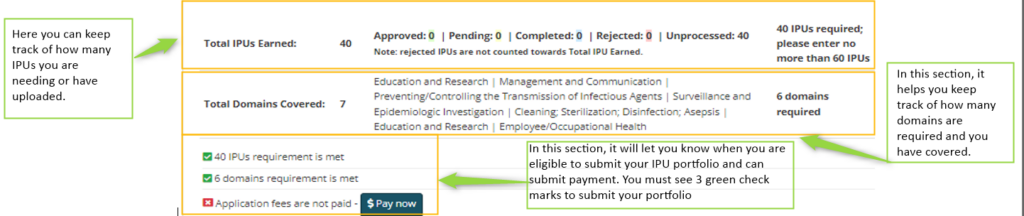
Check your application status

CBIC Transactions
Did you know under “My Transactions” you can view your payment history or any refund issues back to you? This tab will show all transactions between you and CBIC.

CBIC Communications
Now you may be asking yourself, where I can find a copy of my receipt? Or where can I find the automated emails CBIC has sent? The “My Messages” tab keeps a log of all your communications from CBIC.
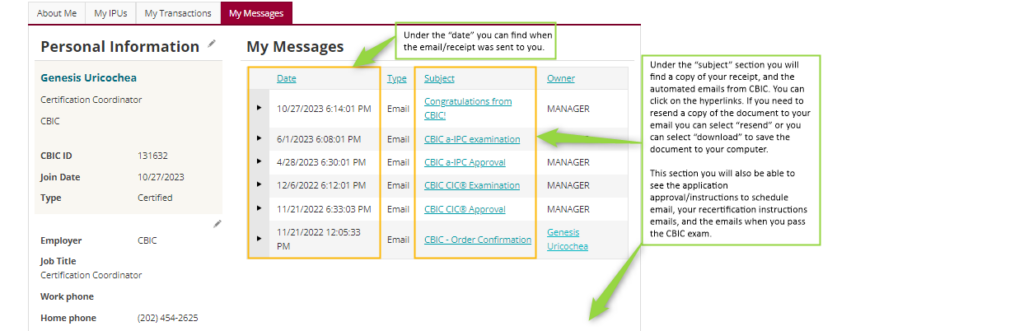

This concludes the step-by-step navigation through your CBIC profile. If you are still feeling confused or have any questions, please email us at info@cbic.org.